How to Let an AI Agent Read and Edit Your Notes (Claude Code, Codex)
On a recent project, Talk Truz, I kept losing track of what I had actually done that day. I needed to send an update, and all I had was a half-remembered list in my head.
So I tried something. I asked my AI agent to write down each change in a note while it worked, and at the end of the day to turn that note into the update. It took about a minute, and I didn't write any of it myself.
What made it possible is the feature this article is about. In txtnode you can open a note or a folder, press Share with AI, and copy one short message. You paste that message into your agent and it can start working in your notes. There is no API key, nothing secret in the chat, and the link covers one note or one folder and then expires on its own.
Below is how it works, the ways I use it, and what it can't do. I'll also be straight about which AI tools it works with, because it doesn't work with all of them.
Why giving an AI agent your notes is harder than it looks
I had tried the usual routes before, and each one annoyed me in its own way.
Pasting notes into the chat works once. After that the copy is stale, the agent can read but can't write back, and a long note eats half the conversation.
API keys are worse. You make one, paste it into the chat, and now it sits in your history. Most keys open far more than the single note you meant to share, and they don't expire unless you remember to kill them.
Plugins and connectors can be good, but they need setup, and the permissions are often all or nothing. Letting an agent read a folder and letting it delete the folder are two different decisions. They shouldn't share a switch.
What I wanted was what you'd give a colleague: this one folder, for this week, and I can take it back.
How Share with AI works
You need to be signed in, since it lives in the private files area.
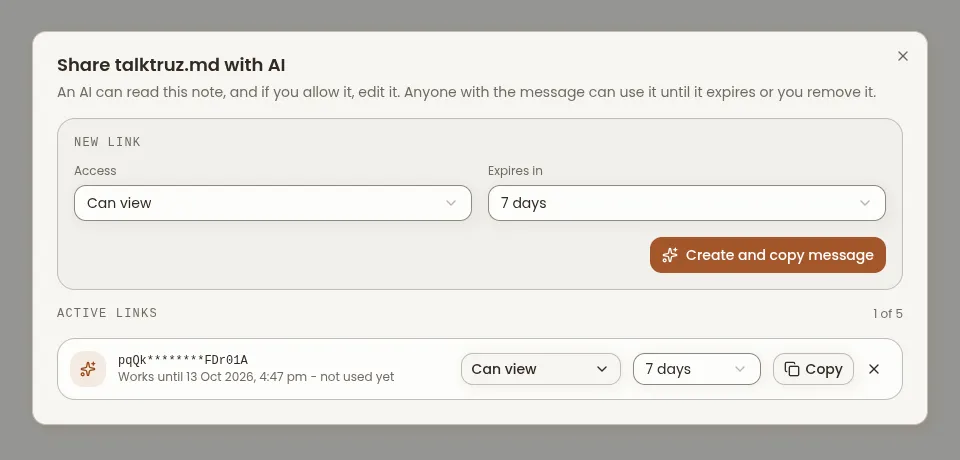
- Open a note or a folder in Files.
- Press Share with AI.
- Choose what the agent may do and when the link expires.
- Press Create and copy message.
- Paste the message into your agent.
The message is a single sentence:
Read https://txtnode.com/ai/<your-link>/how-to and follow the instructions there to work with my txtnode notes.
There's no secret in that sentence. The agent opens the page, and the page tells it what it may do with this link and exactly how to do it. The instructions are written for that one link, so a view-only link never even explains how to edit.
Reading is a plain request. Changing anything is a POST request. That single difference is why some AI tools work and others don't, and I'll come back to it.
What you control
Every link has three settings.
Scope. One note or one folder. Give an agent a folder and it can see the notes inside it and nothing outside. It can't reach your other files, your account or anyone else's notes.
Permissions. You decide what the agent can do.
| Permission | What it allows |
|---|---|
| View | Read the notes. This is the default and it changes nothing. |
| Edit | Change the text of notes. |
| Create | Add new notes and folders inside the scope. |
| Rename | Rename notes and folders inside the scope. |
| Delete | Delete notes and folders inside the scope. |
There are two presets. Can view is read only. Can edit gives edit, create and rename. Delete isn't in either one. You have to tick it yourself, and the dialog warns you that a deleted note is gone for good.
Even then, delete is deliberately slow. The agent has to send the exact name of what it's deleting, and each link can delete at most 10 things a minute and 50 a day. The note or folder the link was made on can never be renamed or deleted through that link.
Expiry. 24 hours, 7 days or 30 days. After that the link simply stops working. You can change the expiry, change the permissions or remove the link at any time, and it takes effect straight away.
A few other limits are set for you:
- A link can never be more powerful than you are. If your own access to a note is reduced, the links you made follow it down.
- You only see your own links, not other people's links on the same note.
- Each link is rate limited, so a runaway agent can't hammer the service.
- You can have up to five links on one note or folder.
What the agent writes gets checked
Anything an agent writes goes through the same rules as the browser. Raw HTML is refused, which rules out scripts and styles. Links have to be http, https or mailto, and the usual tricks for sneaking a bad link past a filter are caught too.
Notes are Markdown, and the instructions the agent reads include the txtnode table format, so the tables it writes show up properly.
Where I use it
When the agent writes and updates notes
For these I choose Can edit, and add create if the agent should start new notes.
A work log that turns into an update. This is the Talk Truz example from the start. I keep one note open for the day and ask my agent to record each change as it happens: what was done, what I decided, what's left. Then, when it's time to report, I ask it to turn the log into one clear update for the client. The update is ready, and I haven't written it from scratch.
This is a trimmed copy of one day's log. My agent wrote every line of it while the work happened.
# Talktruz - Daily Working Updates

| Date | Task / Work Done | Status | Next Steps |
| :--- | :--- | :--- | :--- |
| 2026-10-06 | Country auth routing, OTP logging and cost tracking, Redis rate limits, text messaging | In Progress | Test text messaging end to end |

### 2026-10-06 Changes
- Configured per-country auth method routing in the backend.
- Created a table to log OTP requests, with status and SMS cost.
- Added Redis rate limiting: cooldown, hourly caps, repeat-attempt detection.
- Built an admin page for spending analytics and blocking abusive numbers.
- Added short text messages alongside voice notes, with disappearing timers.
- Access: one note, edit
- Expiry: 24 hours
Meeting notes I don't have to type. In a meeting I'd rather listen than type. I jot rough points, and the agent writes them up properly, with decisions and action items, in a note it can reach. By the end of the meeting the notes already exist.
- Access: one note, edit
- Expiry: 24 hours
Tidying a folder. Notes pile up. The agent can rename the messy ones, sort them into folders and merge the duplicates.
- Access: one folder, edit, create and rename, with delete left off
- Expiry: 24 hours
When the agent only reads
For these I choose Can view. The agent can read everything in scope and change nothing.
I write, the agent reads. This works the other way round too. I write rough notes in txtnode, maybe a plan for the week or a list of things to do. The agent reads them, picks out the work and starts on it in my project. My notes become the brief, and nothing in them can be changed by accident.
- Access: one note or folder, view
- Expiry: 7 days
Summaries and questions. Ask it to summarise a week of notes, find where you wrote something down, or answer a question from a folder of research.
- Access: one folder, view
Starting a fresh session. A new agent session knows nothing about yesterday. Give it the same link and it picks up where your notes leave off, with no pasting.
- Access: one folder, view
- Expiry: 7 or 30 days
Choosing what to allow
| You want the agent to | Choose | Expiry |
|---|---|---|
| Read and answer | Can view | 7 days |
| Write into one note | Can edit | 24 hours |
| Add notes and folders | Edit and create | 24 hours |
| Reorganise a folder | Edit, create and rename | 24 hours |
| Delete things | Delete, on purpose | The shortest you can |
My habit is to start with the least access and the shortest expiry. You can widen either one later without making a new link.
You can watch it happen
When an agent saves a change, the Preview tab shows it live. The Preview icon pulses, and a small "AI, for your name" marker tells you who made the change. Your own editor never gets overwritten while you're typing. You get a banner that offers to load the new text when you're ready.
Does it work with my AI? Claude Code, Codex and others
This is the catch I mentioned. The agent has to be able to open a web address, and to change anything it has to send a request. That means AI tools that can run commands or make web requests, which in practice means coding agents running on your computer.
A plain chat window without internet access can do neither. I tried ChatGPT first, and it couldn't open the link, so nothing worked. This is the most likely reason it will seem broken for you, so check it first.
Coding agents that run on your computer are the ones that work. I ran the same message in Claude Code, Codex, Gemini CLI, Antigravity and Cursor. In each one the agent opened the how-to page, read a note and saved a change back. I tested them on 6 October 2026, and tools change quickly, so try it in yours.
If your AI can't open links, you can still copy a note's text into the chat and paste the answer back. That's a manual job and a different route from the one in this article.
Is it safe?
The design does a fair amount for you:
- The link is 43 random characters, so nobody can guess it.
- It covers one note or folder, so there's nothing else to find.
- It expires, and you can remove it at any moment.
- What the agent writes is checked, so it can't put scripts or styles in a note.
- Nothing secret goes into the chat, so there's no key to leak from your history.
It doesn't do everything, and I'd rather you knew where the edges are.
Anyone who has the message can use it until it expires. Treat it like a house key you've lent out. Don't paste it anywhere public.
An agent follows text, and a note is text. This is called prompt injection. If a note contains instructions, an agent that reads it might act on them. The link limits the damage, because the agent can only do what you allowed, in the place you allowed it. That's the reason to share view only for notes you didn't write, keep expiries short and leave delete off unless you mean it.
Deleting is permanent. There's no trash and no version history yet. If you let an agent edit a note you can't afford to lose, keep a copy first.
Questions people ask
Do I need an API key? No. The message has no key in it, and neither does your chat.
Can the agent see my other notes? No. A link covers one note or one folder, plus the folders inside it.
Can I take access back? Yes, straight away. Remove the link and it stops working on the next request, even in the middle of a task.
What happens when the link expires? It stops working. You can set a new expiry on the same link to bring it back, or make a new one.
Does it work with ChatGPT? Not in a plain chat without internet access. It needs an agent that can open links.
Is it free? Yes.
Can I have more than one link? Yes, up to five on one note or folder. Each has its own permissions and expiry.
Try it
Open txtnode.com/app/files, pick a note, press Share with AI and paste the message into your agent. Start with view only, on a note you don't mind it reading.
If you haven't used txtnode before, what is txtnode and why I built it explains the idea. And if you came here looking for somewhere to share plain text with no sign in, the pastebin alternatives guide compares the options.